
Rooting an Android device has many privileges. Having rooted your phone once, you are able to use third-party custom ROMs and mods that require a custom recovery to be installed. Besides, there are hundreds,or say thousands, of app that are capable of doing wondrous things and enhance your phones performance and usability. But this humble eulogy of rooting cannot undermine the hazards associated with it.
Rooting a Samsung Galaxy device is much easier than rooting any device manufactured by other OEMs but when it comes to rooting a Samsung phone from Verizon, things get a little more complicated and rounded. However, complicated it might be, it cannot stop our great Devs to crack the nut. All props and credit for the method described here goes to XDA member open1your1eyes0.
Disclaimer:
Please note that the procedure of unlocking the bootloader, rooting and installing a custom recovery on your Verizon Galaxy S3 SCH-I535 is considered risky. Moreover, it will also void the warranty of your phone. Proceed only when you are sure what you are going to do and understand the seriousness of things. More than anything, be careful while following the steps.
Looking for Rooting Tutorial for Some Other S3 Variant?
Take a look all Galaxy S3 rooting tutorials here.
Prerequisites:
- Charge your phone to have at least 60% of battery juice.
- Rooting does not wipe any data from your phone but we would strongly recommend that you backup all your contacts, messages, call-log, apps, etc. Here are Some Good Free Apps to help you with backing up your data.
- Put your device in USB Debugging mode from Settings> Developer Options>
Required Downloads:
Since this tutorial is for Galaxy S3 I535 on Android 4.1.1 and 4.1.2 both, download the files accordingly- only different being the stock bootchain file. For the sake of convenience put all the downloaded files in one folder.
These are important but mandatory files. If you have them, just skip:
- Download the Odin tool and extract the zip on your desktop: Odin3-V3.07.Zip – Mirror
- Download Samsung USB Drivers and install on your computer. Skip if you already have it: Download
These two files are meant to be downloaded by all:
- Download the custom Bootchain file: VRALEC.Bootchain.Tar.Md5 – Mirror
- Download CWM Recovery: CWM6023TouchVZW.Tar.Md5 — Mirror
Download one of the following files depending on what you want:
- Download SuperSU file (for Root Only): CWM-SuperSU-V0.99.Zip
- Download SuperUser file to (Root and Unlock Bootloader both): SuperSU_Bootloader_FIXED.Zip — Mirror
Download one of the following bootchain files depending on firmware version of your Galaxy S3 SCH-I535:
- Bootchain file for VRBLK3 (Jelly Bean 4.1.1): VRBLK3_Bootchain.Tar.Md5 — Mirror
- Bootchain file for VRBMB1 (Jelly Bean 4.1.2): VRBMB1_Bootchain.Tar.Md5 — Mirror
Don Not Miss!
Root, Unlock Bootloader and Install CWM:
Already made the preparations and downloaded the required stuff? It’s action time now. Be careful and proceed.
- Copy the “SuperSU_Bootloader_FIXED.zip” file to your phone’s internal or external SD card.
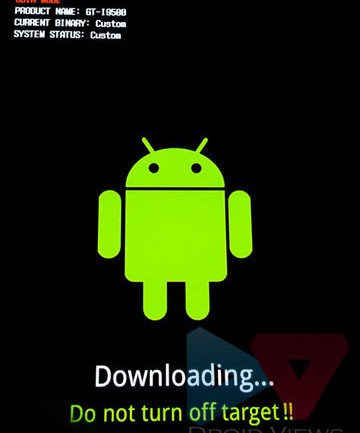
- Turn off your Galaxy S3 and boot it into Download mode: hold the Volume Down + Home + Power buttons simultaneously for a few seconds till you see a warning screen asking you to press Volume Up key to continue. Pressing this key will take you to Download or Odin mode.
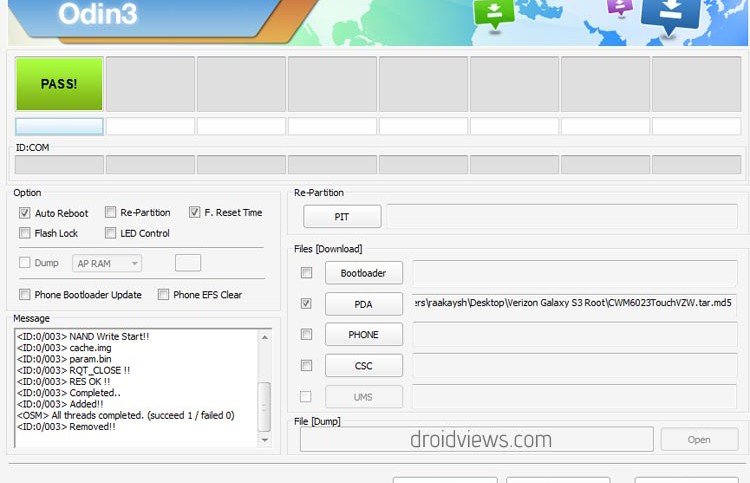
- Open the Odin folder and run the .exe file present there. When Odin window is opened, connect your Galaxy S3 to PC via USB cable. Wait till Odin detects your device and you see ID:COM port turning Blue and “Added!!” text at the message box below.
- Now we will flash the custom bootchain file so make sure that “Auto Reboot” and “F Reset Time” are selected on Odin. Then click the PDA button and select the “VRALEC.bootchain.tar.md5″ file and click on “Start” button on Odin.
- The bootchain file will be flashed in a few seconds and you will see “RESET!!” message with blue signal. Your phone will reboot automatically. Close the Odin window and disconnect the USB cable.
- Now you need to install the ClockworkMod touch recovery. To install it, boot the phone into Download mode again (as you did in Step #2 above).
- Relaunch the Odin, connect the phone using the cable and uncheck the “Auto Reboot” option on Odin.
- Click on the PDA button, select the “CWM6023TouchVZW.tar.md5″ file and hit the “Start” button.
- CWM Recovery will be flashed to your phone followed by “PASS!!”. This time your phone will not reboot automatically. Close the Odin window.
- Now pull out the back cover of the phone and remove the battery. Place the battery to its place after about 30 seconds.
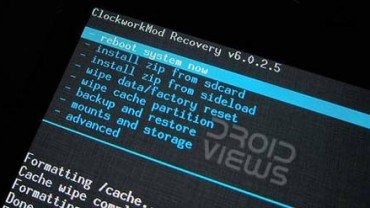
- Then boot the phone into ClockworkMod recovery mode. To do this, hold the Volume Up + Home + Power buttons simultaneously. Keep the 3 keys pressed till your phone vibrates and when it does, release the Power button but keep the other 2 keys pressed till you a gray background with blue text the clockworkmod recovery written on the top of the screen.
- Since it’s touch recovery, you can either select options by tapping, or using the volume and power keys.
- Okay, now go to “install zip from sdcard> choose zip from sdcard” and select the “SuperSU_Bootloader_FIXED.zip” file.
- Confirm your choice by selecting “yes’ and let the installation finish.
- When it’s done, go back and select “reboot system now”. But before your phone boots, pull out the battery and place it back after a few seconds.
- Once again, and for the third time. you will have to boot the device in Download Mode. You know well how to do it.
- Relaunch Odin, connect the phone to PC, click on PDA button and select the stock bootchain file (either VRBLK3 orVRBMB1) depending on what file you have downloaded.
- Click the “Start” button to initiate the installation. When it is finished, the phone will reboot automatically.
So, now you have a fully rooted Verizon Galaxy S3 SCH-I535 with unlocked bootloader and ClockworkMod recovery installed. To verify the root, download any app that requires root permissions. However, there is a specific app for the purpose and you can find it at the Play Store.


Enjoy the root and let us know how it went for you. Cheers to all!

Post a Comment